
The basics
Business Directory is prepared to work with WPML. You don’t need to enable or configure anything. Business Directory will try to honor your WPML settings and act accordingly. That being said, there are some things to consider when using WPML to translate your directory:
- Familiarize yourself with WPML. Read the Getting started guide available at WPML.org. When installing WPML for the first time, you’ll complete a quick setup wizard. If you already have WPML on your site, make sure to upgrade to the latest version. From WPML 4.8 and up, go to WPML → Settings to ensure you have added your site’s description and audience. WPML’s AI uses this information to produce contextual translations.
- In order to translate your directory, the first thing you need to do is translate the page containing the main shortcode (i.e., the main directory page) to each one of the languages you intend to support. These translated pages should still contain the main shortcode
[businessdirectory]but you can name them in the correct language. - Since listings are just custom posts and categories/regions/tags are custom taxonomies, you can use WPML to provide translations for all the content managed via Business Directory Plugin.
Translating the main directory page
To translate the main “Business Directory” page:
- Go to WPML → Translation Dashboard and expand the Pages section. Select the Business Directory and click Translate your content.
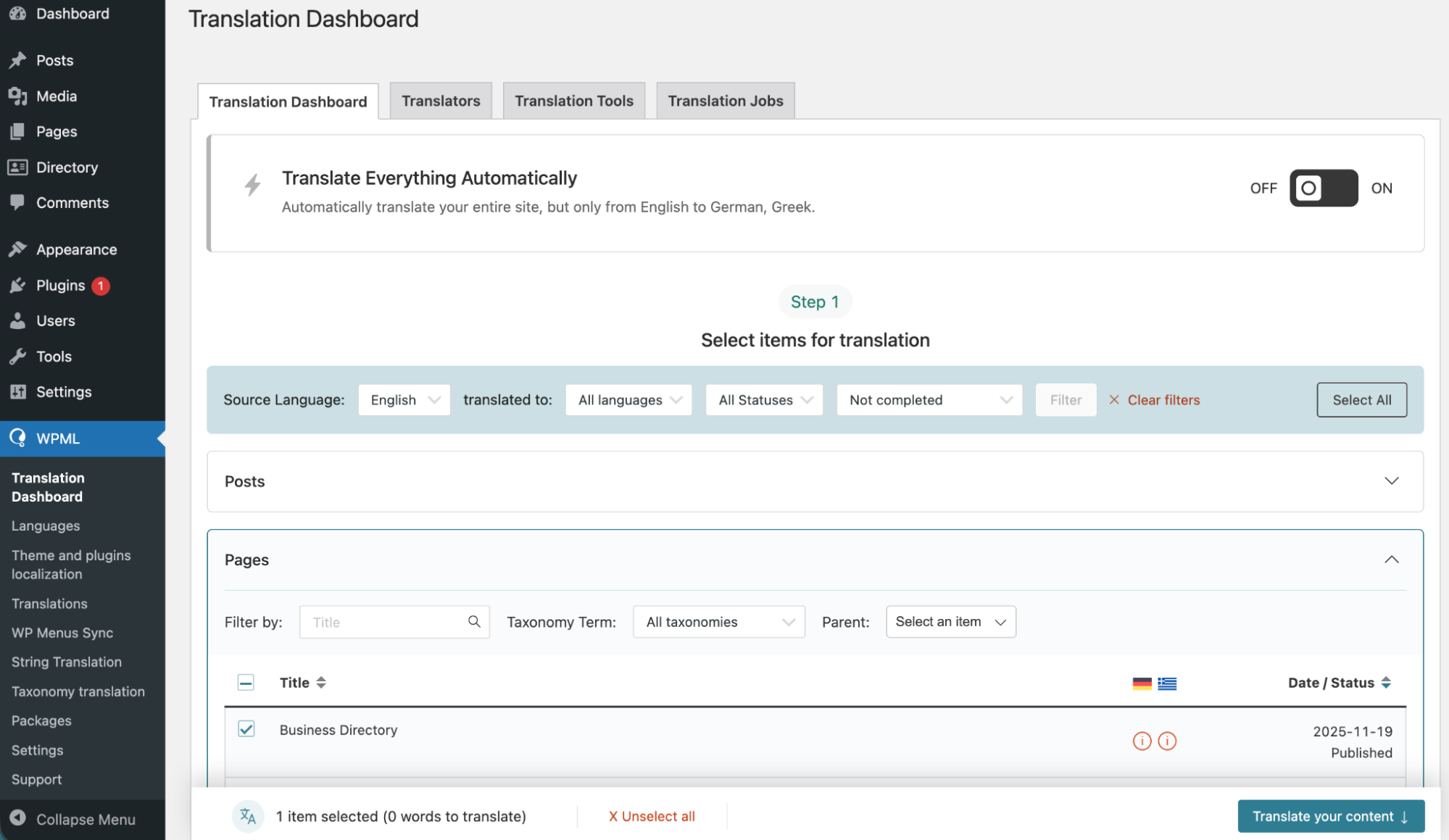
- At Step 2, select your translation method. WPML’s proprietary AI, Private Translation Cloud (PTC), delivers the best results using your site context and glossary to produce natural-sounding translations. When translating automatically, the Dashboard shows you the cost in credits and euros.

Translating form fields and fees
To translate form fields and fees, you need to install the String Translation module from WPML.
Once the module has been installed and activated, you’ll find a menu item called String Translation under the WPML menu, where it is possible to provide translations for field labels and descriptions as well as fee names and descriptions.

You can filter by domain Business Directory Plugin if you only want to see strings related to Business Directory.
For more information on how to use the String Translation Module, please visit the Getting Started guide at WPML.org.
Important: If, for some reason, you don’t see fields and/or fees strings on the String Translation screen, try visiting the form fields screen (Directory → Directory Content → Form Fields) and/or the fees screen (Directory → Directory Content → Plans) and save any item after editing it. You don’t actually have to change anything. The save will trigger a string database update.
Translating text from Business Directory
Once you’ve translated your main page, view it on the frontend. You may see that some texts aren’t translated yet. For example, in the screenshot below, you can see that “Manage Listings” and “Add Listing” aren’t translated in the German version of the Business Directory.
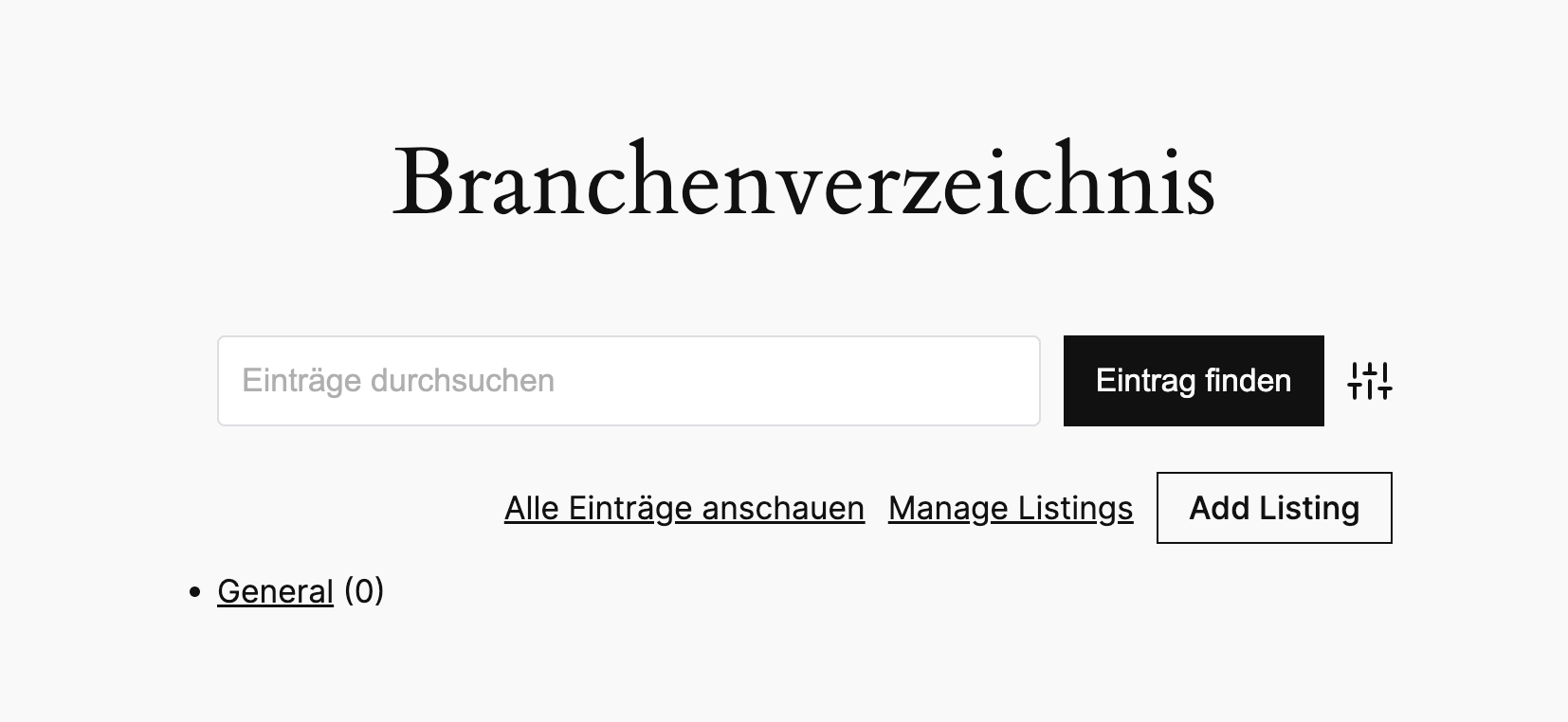
To translate these texts, go to WPML → Translation Dashboard and expand the section Other texts (Strings). WPML automatically picks up texts on pages when you view them on your site’s frontend. You can search for the texts or apply filters, like the business-directory-plugin domain.

Now simply select the strings and translate them like you translated the main Business Directory page.
From this section, you can translate all strings coming from the Business Directory when you create and save them (e.g. field labels).

Translating listings
To translate a listing:
- Go to WPML → Translation Dashboard, and expand the Directory section. Then, choose the listing you want to translate.
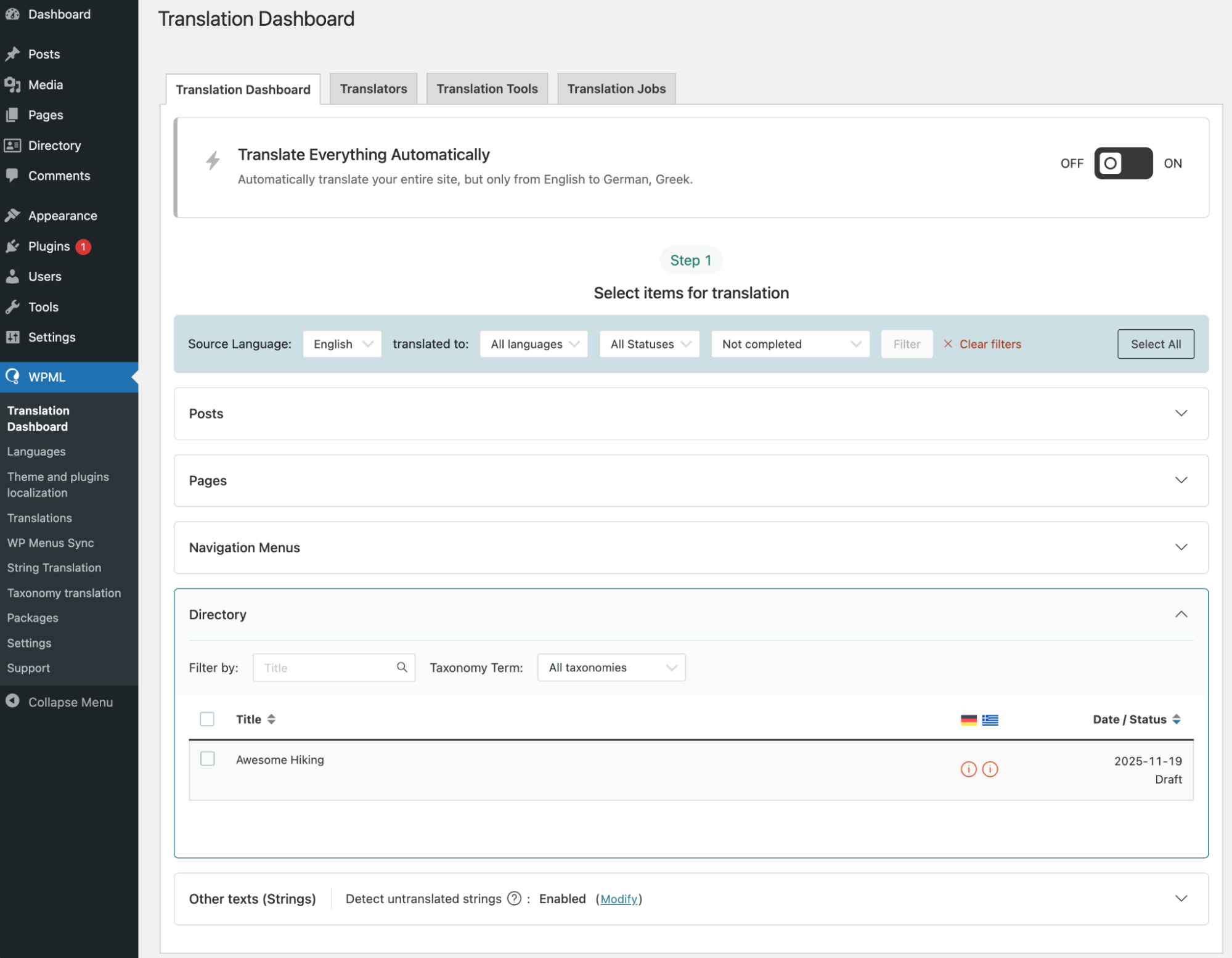
- Choose your translation method. Translating automatically is the most efficient way as you can translate multiple listings in seconds. Choose PTC for the highest quality.
Translating taxonomies (regions, categories, tags)
WPML translates taxonomies when you translate the content they’re attached to. For example, a listing category is translated when you translate a listing that has this category.
If you want to translate a taxonomy on its own or before attaching it to other content, go to WPML → Taxonomy Translation. Select the taxonomy you want from the dropdown menu and add its translations. Our WPML integration will already have set “Directory Categories” and “Directory Tags” to be translatable. If the Regions module is enabled, you will need to manually set “Directory Regions” to be translatable.

Important
- Please keep in mind that once you decide to translate a taxonomy, untranslated terms will stop appearing on the front end when you browse a language-specific version of the directory. For instance, when you are browsing the Spanish version of the directory page, you’ll only see categories, tags, and regions that have been translated to Spanish. Untranslated regions (and their listings) won’t be available.
- (For Regions users) Since WPML translates terms by creating new entries in the database, translated Regions work independently from Regions in the original language. This results in the flags that control whether the region is enabled or displayed on the sidelist to now be language-specific.
Settings from the original regions won’t be automatically migrated. You can filter regions by language using a row of filters that appears on top of your regions on the Regions screen:
- (For Enhanced Categories users) Due to the way WPML works, category images are language-specific. When you translate a category, you can assign it a category image that is shown only for that language. If no image is assigned, the image from the default language won’t be used for the translated term.

